
The “App not installed” message is the most common problem when you install the HappyMod APK, and it is rarely a sign that your phone is broken. In nearly every case it comes down to one of seven causes. Work through the list in order; most people are fixed by step one or two.
If you have not installed the app yet, start with our guide to happymod install and verify the file on our guide to happy mod download first.
Why Android Shows “App Not Installed”
Android refuses an install when something about the package is wrong or in conflict. The message does not tell you which problem it is, so the fixes below follow the most likely causes, from the easiest to the most technical.
| Cause | How common | Fix number |
|---|---|---|
| Older copy with a different signature | Very common | 1 |
| Not enough storage | Common | 2 |
| Partial or corrupted download | Common | 3 |
| Android version too old | Sometimes | 4 |
| Play Protect block | Sometimes | 5 |
| Work or secondary user profile | Rare | 6 |
| Tampered file | Rare, but serious | 7 |
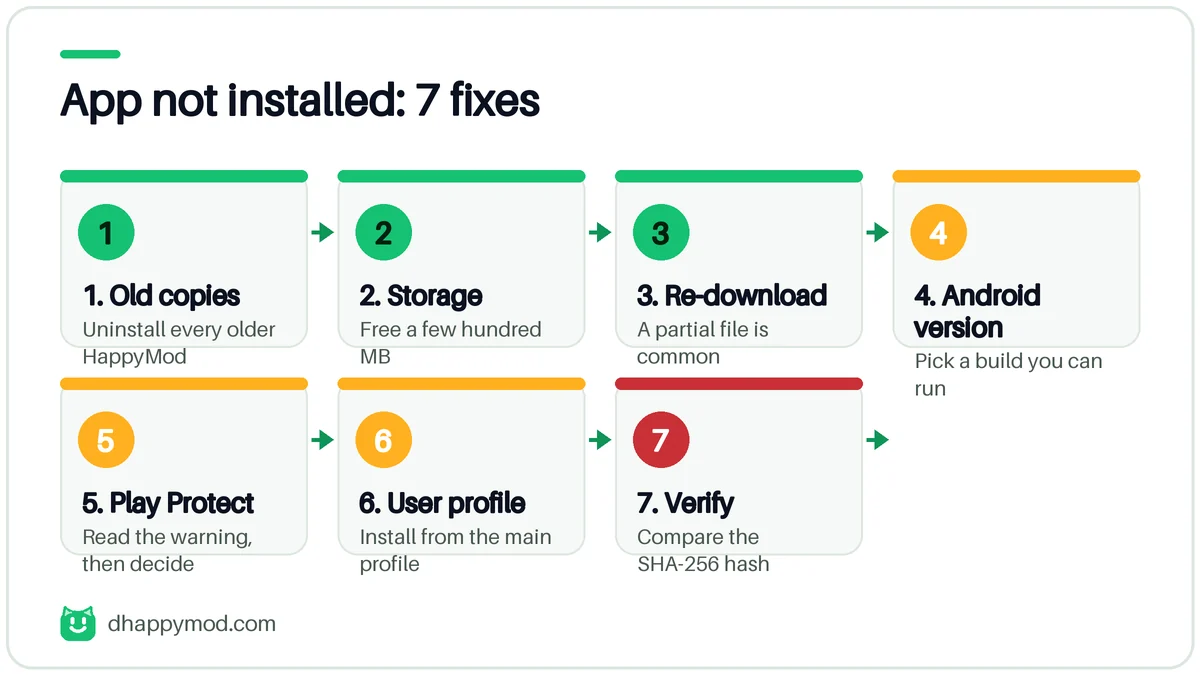
Fix 1: Remove Every Older Copy
If you ever installed HappyMod before, uninstall it completely. Go to Settings, Apps, find HappyMod and tap Uninstall. Also look for renamed copies and “lite” versions. Restart the phone, then try again. Android blocks an update when the old copy was signed with a different key.
Fix 2: Free Up Storage
Android needs space for the APK and for the unpacked app. Free at least a few hundred megabytes by deleting unused apps and old downloads. Then try the install again.
Fix 3: Download the File Again
A partial download is the classic cause. Delete the file, switch to Wi-Fi and download it once more from the source listed on our file table. Compare the file size with the one shown there. If the sizes differ, do not install it.
Fix 4: Check the Android Version
Open Settings, About phone and note your Android version. If the file requires a newer version, the install fails. In that case look at happymod apk old and pick the newest build that your phone supports.
Fix 5: Read the Play Protect Warning
If Google Play Protect blocks the install, read the warning. Use the file’s hash and the scan report to decide. If you choose to continue, use “install anyway” for this one install only. If the scan shows detections by several engines, stop and delete the file.
Fix 6: Install from the Main User Profile
Phones with multiple users or a work profile can block sideloaded installs. Switch to the main user profile, allow your browser to install unknown apps, and try again.
Fix 7: Verify the File Was Not Tampered With
A repackaged APK can have a broken or mismatched signature. Compare the SHA-256 hash with the one in our table. If it differs, delete the file, download again and, if it still differs, stop and contact us.
Never “fix” the error by installing a second app that promises to repair APK installs. That is a common way to deliver adware.
After a Successful Install
Open the app, deny permissions you do not understand, and switch off unknown-source installs for your browser. Then read our guide to is happymod safe before downloading any mod. For other errors such as crashes, passwords and login problems, see happymod password.
Frequently Asked Questions
Why does HappyMod say “App not installed”?
Usually an older copy with a different signature, low storage, a partial download or an incompatible Android version. Remove old copies, free space and re-download.
Will clearing the cache fix it?
Not usually. The error happens during installation, before the app has a cache. Uninstalling old copies and re-downloading works better.
Is it safe to tap “install anyway” on Play Protect?
Only after you verify the hash and read the scan report. If several engines flag the file, do not install it.
Does a factory reset help?
It is almost never needed. Try the seven fixes first.
Can I fix this on iPhone?
There is no HappyMod for iPhone. See happymod ios.